![sendify-helpcenter-logo-white-2.svg]](https://help.sendify.com/hubfs/sendify-helpcenter-logo-white-2.svg)
What can I use Shipping Rules for?
Here are some common use cases:
- You always want to ship without pickup and avoid activating it manually every time
- A certain carrier performs poorly to a specific postal code — you never want to see it as an option there
- A customer should always receive a specific shipping method, regardless of who in the company is booking
- During holidays you want to restrict available options so that temporary staff can't make the wrong choice
- You ship outside the EU and want Incoterm DDP to always be pre-selected
What's included in my subscription?
Basic
- Filter out or prioritize carriers for all shipments
- Automatically enable Without pickup for all shipments
- Automatically enable Green shipping for all shipments
- Ready-made templates to get started quickly
Plus and Pro
Everything above, plus:
- Rules based on shipment parameters: postal code, contact, weight, delivery country, etc.
- Automate more add-ons: notifications, delivery notice, Incoterm DDP, liftgate, dangerous goods, and more
- Rules per contact in the address book — control which carrier applies to a specific recipient
- Ability to combine multiple conditions in a single rule
How does it work?
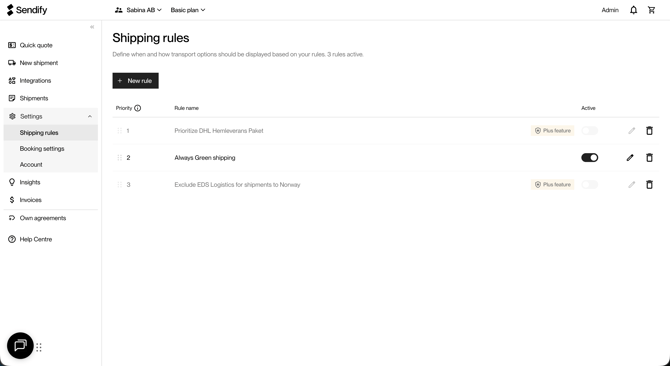
1. Open Shipping Rules
Go to Settings → Shipping Rules in Sendify. Here you'll see an overview of your active rules and can create new ones.
2. Create a rule
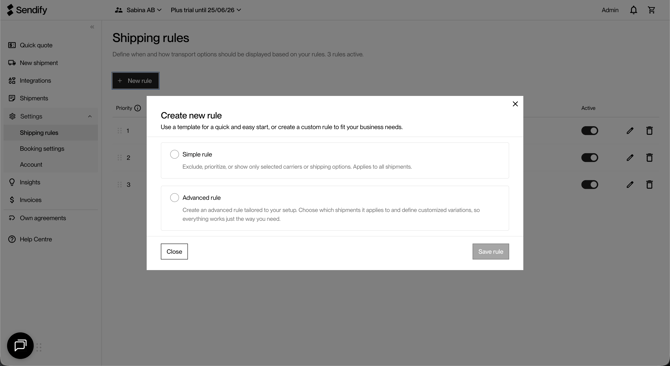
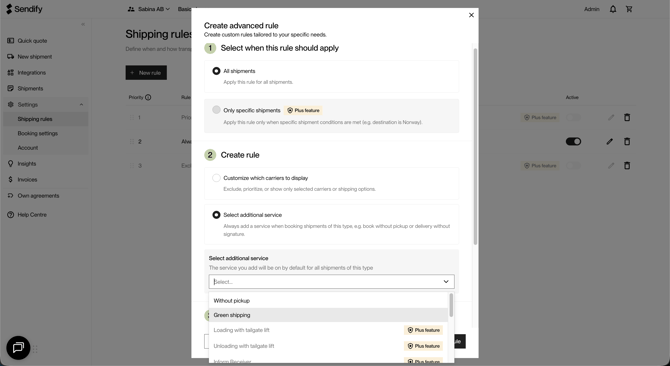
Click New rule and choose whether to create a rule from a template (simple rule) or build your own more advanced rule.
a. Advanced rule
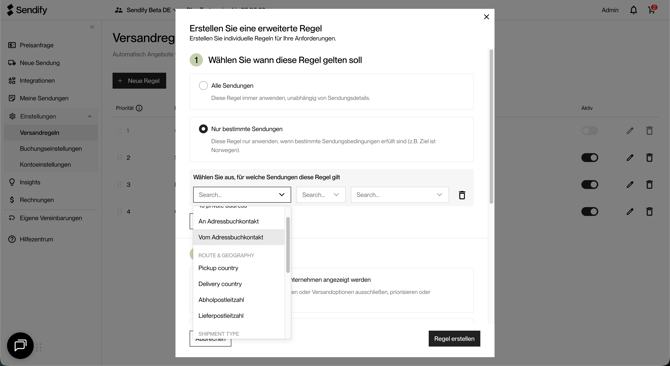
Start by choosing when the rule should apply:
- All shipments
- Only certain shipments (Plus/Pro), e.g.:
- Delivery country is Germany
- Weight exceeds 20 kg
- Recipient is a specific contact in the address book
- Sender postal code starts with 7
You can combine multiple conditions in the same rule.
Then choose what the rule should do:
- Customize which carriers are shown - remove carriers or products you don't want to see, or decide the order in which carriers appear in the search results
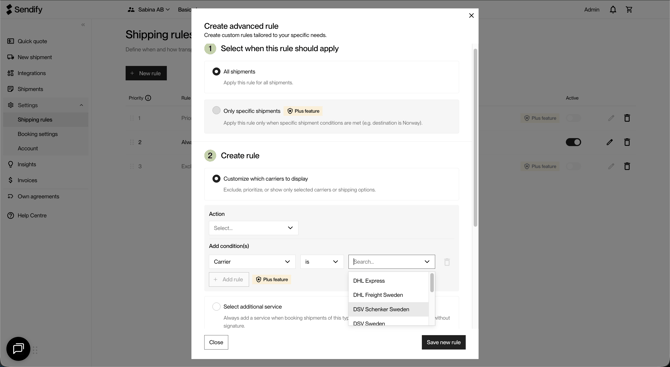
- Choose an add-on - automatically enable an add-on (e.g. Without pickup or DDP)
3. Activate the rule
Save and activate the rule. It takes effect immediately and applies from the next search. You can temporarily deactivate a rule at any time without deleting it — useful during holidays or for exceptions.
FAQ
Do the rules apply when booking via an integration? Yes, Shipping Rules work both in the app and via integrations.
Can I have multiple rules active at the same time? Yes. If multiple rules match the same shipment, they are applied in the order they are listed. You can change the order in settings.
What happens if I deactivate a rule? The rule is saved but won't affect search results until you activate it again.
I previously used Without pickup under Booking settings - what happens to it? That setting has been automatically moved to Shipping Rules. Everything continues to work exactly as before, just in a new place.
Can I test a rule before it takes effect? Create a rule and run a test search to see how the results are affected.
Get started
👉 Go to Shipping Rules in your settings
Have questions? Contact our support team and we'll help you set up your rules.