![sendify-helpcenter-logo-white-2.svg]](https://help.sendify.com/hubfs/sendify-helpcenter-logo-white-2.svg)
General Tips
- If your printers are offline, check that the computer with the PrintNode client installed is online and awake, and that PrintNode is properly connected and logged in.
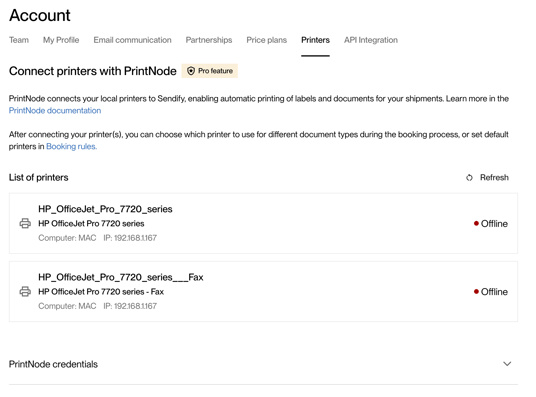
- If you do any changes on your printer settings, restart the PrintNode server to ensure that the changes are applied.
- How: (1) Open PrintNode (2) click "Quit" (3) wait a few seconds (4) Start PrintNode again
- Make sure you have "Parallel printing" enabled in PrintNode.
- Make sure you have the latest "Default printing backend" enabled in PrintNode.
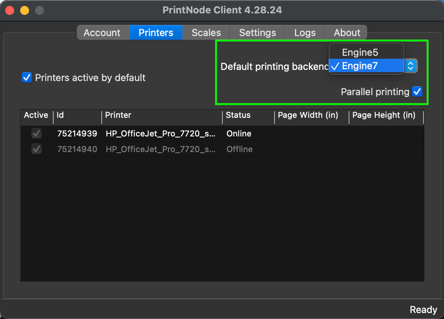
- When installing the printers, ensure you used the official printer drivers installed from the manufacturer's website, and not a default driver from Windows.
- The first print job of the day may take a little longer, as PrintNode needs to reconnect after the computer has been off overnight.
A test print to determine whether the issue is with your Sendify setup or related to PrintNode and your printers
Printer problems may not be related to Sendify, but rather to PrintNode or the printer itself. Before contacting support, you should do the following:
- Print a test page from PrintNode.
- Go to https://api.printnode.com/app/login and log in with the credentials we generated for you.
- Go to "Print Something".
- Select Source: "PrintNode Test Page"
Printer: the printer that isn't working
Test file: any file that suits the printer and format you're trying to print.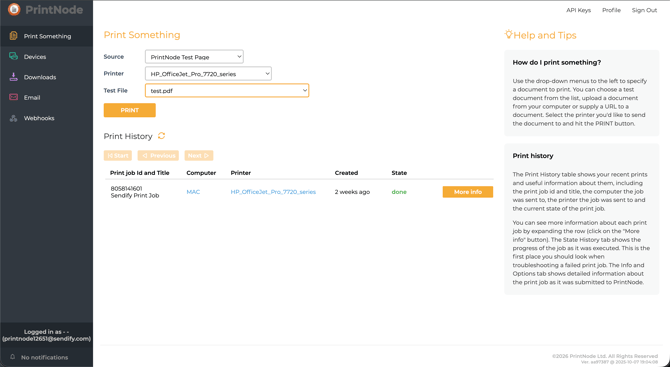
- Click Print.
- Done.
If your test print looks as expected, please contact Sendify support for further troubleshooting.
If you don't get the expected print result, the issue lies in the PrintNode and/or printer setup. PrintNode has a FAQ and a troubleshooting guide, and you can also contact them for more help here.